




A slow PC does not always need to be replaced.
Many older computers still have enough basic processing power for everyday tasks such as web browsing, office work, online meetings, media playback, and light creative work. The real problem is often not age alone—it is outdated storage, limited memory, software clutter, or years of accumulated background processes.
For many users, a few smart upgrades and optimizations can make an old PC feel significantly faster at a fraction of the cost of buying a new machine.
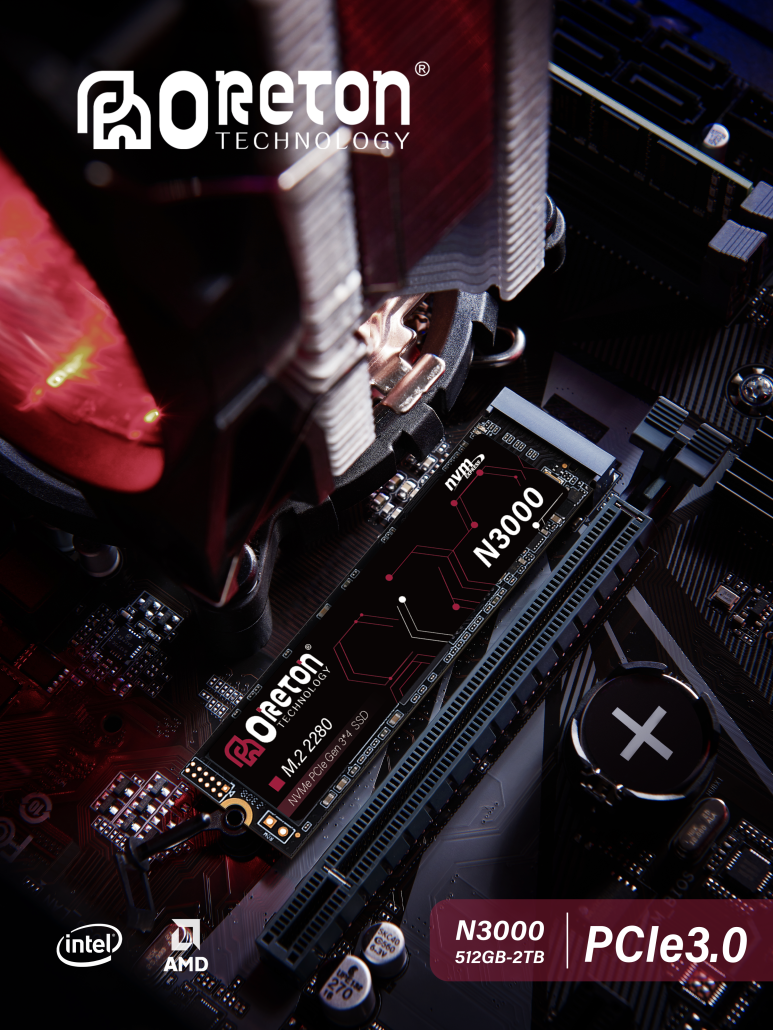
This guide explains practical ways to improve the speed of an older PC, what upgrades matter most, and when replacement is actually the better choice.
1. Replace a Hard Drive with an SSD
If your old PC still uses a traditional hard disk drive (HDD), this is often the most effective upgrade available.
Hard drives rely on mechanical movement, which creates slower boot times, longer application loading, and delays when opening files. SSDs use flash
memory and respond much faster.
What usually improves after switching to an SSD:
- faster startup times
- quicker app launches
- smoother system updates
- shorter file loading delays
- more responsive everyday use
For many older systems, this single change can make the computer feel modern again.
2. Add More RAM if Multitasking Feels Slow
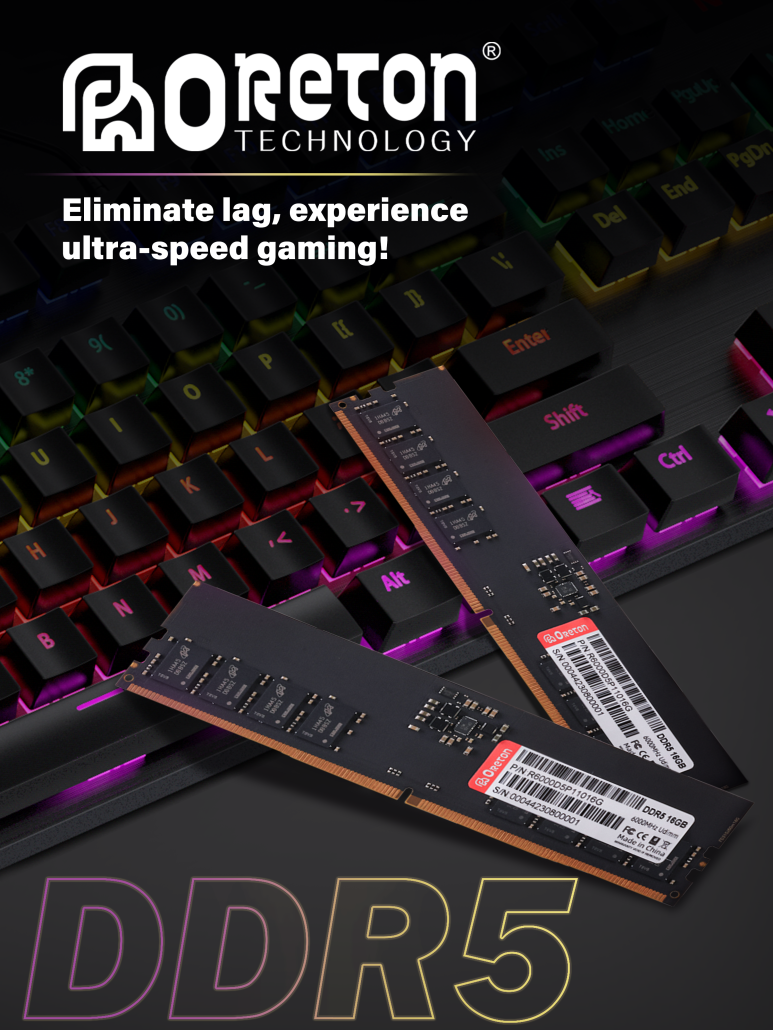
Memory capacity becomes important when multiple tasks are open at the same time.
If your PC slows down with several browser tabs, office apps, streaming, or video calls running together, limited RAM may be the bottleneck.
When RAM runs out, the system uses storage as temporary memory, which is far slower.
Signs you may need more RAM:
- lag when switching apps
- browser tabs reloading
- stuttering during multitasking
- slowdowns while using communication apps and documents together
For many older PCs:
- 4GB can feel restrictive today
- 8GB is a practical minimum for many users
- 16GB is more comfortable for heavier multitasking
3. Free Up Startup Programs
Many old PCs become slow not because of weak hardware, but because too many programs launch automatically when Windows starts.
These apps continue running in the background, consuming memory and CPU resources.
What to do:
- review startup apps
- disable unnecessary launch items
- keep only essential tools active
This can improve boot time and reduce background load immediately.
4. Remove Unused Software and Files
Over time, systems accumulate programs that are rarely used.
Unused software may still install services, update tasks, and background processes.
Cleaning unnecessary apps and deleting large unused files can help by:
- freeing storage space
- reducing background activity
- simplifying the system environment
A cleaner system is often a faster system.
5. Keep Enough Free Space on the Drive
Storage performance can decline when a drive becomes nearly full.
Operating systems also need free space for updates, temporary files, and caching.
Good practice:
- avoid filling the system drive completely
- keep healthy free space available
- regularly move or archive unused files
This is especially important for SSD-based systems.
6. Check for Overheating and Dust
Older PCs often suffer from dust buildup and poor airflow.
When temperatures rise too high, processors may reduce speed automatically to protect themselves. This is known as thermal throttling.
Common signs:
- fan always loud
- system becomes slower after some use
- hot chassis or keyboard area
Cleaning vents, fans, and improving airflow can restore lost performance.
7. Update the Operating System and Drivers
Software updates are not only about features—they also include fixes, compatibility improvements, and performance optimizations.
Keeping these updated can help:
- graphics behavior
- storage performance
- device stability
- gestione dell'energia
However, on very old systems, major OS upgrades should be considered carefully if hardware resources are already limited.
8. Scan for Malware or Hidden Background Load
Some slow systems are affected by unwanted software, browser extensions, or malware.
These can consume resources silently.
Running a trusted security scan and reviewing browser add-ons can help recover performance.
9. Adjust Visual Effects for Lightweight Performance
Older hardware may struggle with heavy animations and visual effects.
Reducing unnecessary interface effects can improve responsiveness, especially on low-memory systems.
This will not transform performance, but it can make the system feel smoother.
10. Know When Replacement Makes More Sense
Not every old PC should be upgraded forever.
Replacement may be smarter when:
- CPU is too outdated for your software
- upgrade options are limited
- repair costs are high
- battery (laptops) is failing badly
- your workload has changed significantly
Upgrades are valuable when they extend useful life economically. If costs keep rising, replacement may be the better investment.
11. Best Upgrade Priority for Most Old PCs
A practical order for many users:
- Install an SSD (if still using HDD)
- Upgrade RAM if multitasking is slow
- Clean startup apps and unused software
- Check temperatures and maintenance
- Reassess whether replacement is necessary
This sequence often delivers the best value first.
12. Final Takeaway
A slow old PC does not automatically mean it is time to buy a new one.
In many cases, targeted upgrades and basic maintenance can dramatically improve everyday performance. The key is identifying the real bottleneck instead of replacing hardware blindly.
Sometimes a smarter upgrade is worth more than a newer machine.
Informazioni su Oreton
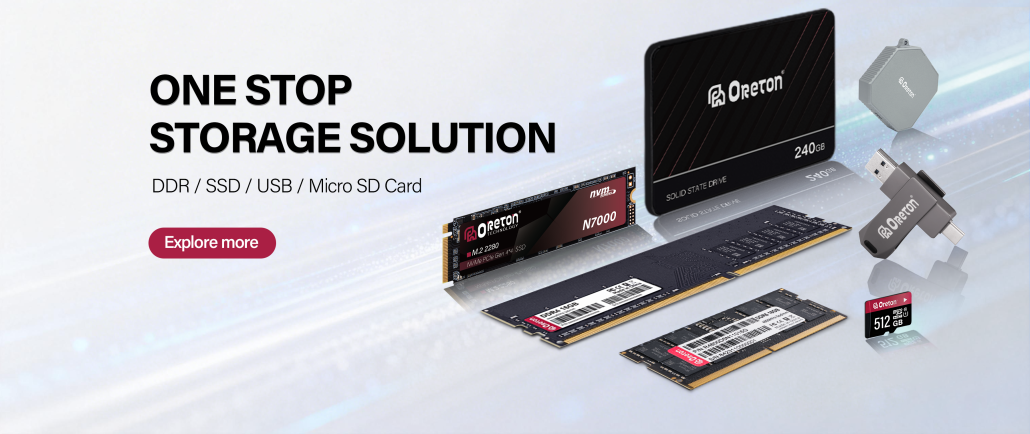
At Oreton, we provide practical upgrade solutions designed to extend the life of existing systems.
Our product range includes reliable SSDs for faster storage performance and memory solutions for smoother multitasking, all built with strict quality control and tested for consistent daily use.
Because the right upgrade should make old hardware useful again.