




Understanding How CPU, GPU, RAM and Storage Affect Overall System Performance
Upgrading a PC does not always result in the performance improvement users expect. A faster processor may make little difference in a graphics-intensive game, while a high-performance SSD may not noticeably improve an application that is limited by CPU processing power.
The reason is that overall system performance depends on how different hardware components work together. When one component cannot keep up with the demands of a particular workload, it can limit the performance of the entire system. This is commonly known as a hardware bottleneck.
Identifying the limiting component before upgrading helps users allocate their budget more effectively. Rather than choosing hardware based only on specifications or benchmark scores, a more reliable approach is to examine actual system behavior, identify the source of the limitation and select an upgrade that addresses it.
1. What Is a PC Hardware Bottleneck?
A hardware bottleneck occurs when one component limits the rate at which a system can complete a task. The component may be unable to process data quickly enough, provide sufficient capacity or transfer information at the rate required by other parts of the system.
For example, a powerful GPU may be paired with an older CPU that cannot prepare and submit work quickly enough to keep the GPU fully occupied in certain games. Similarly, insufficient RAM may force a system to rely more heavily on storage, increasing delays when switching between applications or working with large projects.
However, a bottleneck is not necessarily a hardware defect. It is often a consequence of the workload and the balance between components.
A PC can also have different bottlenecks in different situations. A game may be GPU-limited at high resolutions but CPU-limited at lower resolutions and higher frame rates. A video editing system may rely heavily on CPU and GPU resources during rendering while depending on RAM capacity and SSD performance when handling large project files.
The goal is therefore not to eliminate every possible bottleneck. It is to identify the component that most limits the tasks the user cares about.
2. CPU Bottlenecks: When Processing Power Becomes the Limitation
The central processing unit (CPU) handles general-purpose computing tasks, program logic, operating system operations and many calculations required by applications.
A CPU bottleneck can occur when the processor cannot complete the required work quickly enough to keep other components supplied with tasks.
Common symptoms include:
- Frame rates that remain limited even when GPU utilization is relatively low.
- Performance drops in simulation-heavy or CPU-intensive games.
- Slow completion of CPU-based rendering, compression or compilation tasks.
- Long processing times in applications that depend heavily on a small number of CPU threads.
- High utilization on one or several CPU cores while overall CPU utilization appears moderate.
One important detail is that total CPU utilization does not always reveal the full picture. Some applications depend heavily on a few threads rather than using every available core equally. A processor may therefore limit performance even when its overall utilization is well below 100%.
CPU bottlenecks are also influenced by clock speed, architecture, cache behavior, memory performance, power limits and cooling conditions. Simply increasing the number of CPU cores does not guarantee a proportional improvement in every application.
Before upgrading, users should monitor per-core utilization, effective clock speeds, temperatures and performance during the specific workload. These observations help distinguish a CPU limitation from thermal throttling, software inefficiencies or other hardware constraints.
3. GPU Bottlenecks: When Graphics Processing Limits Performance
The graphics processing unit (GPU) handles graphics rendering and many parallel computational tasks. In gaming, the GPU is responsible for producing frames based on scene complexity, resolution, visual settings and rendering techniques.
A GPU bottleneck is common when workloads demand more graphics processing power than the card can provide.
Typical indicators include:
- GPU utilization remaining close to its practical maximum during gameplay.
- Frame rates decreasing significantly when resolution or graphics settings increase.
- Rendering times that are primarily determined by GPU workload.
- Limited frame-rate improvement after upgrading the CPU while keeping the same GPU and settings.
For example, increasing resolution from 1080p to 1440p or 4K generally increases the number of pixels the GPU must process. Higher-quality effects, ray tracing and more complex scenes can also increase the workload.
When GPU performance is the primary limitation, upgrading the CPU may produce little improvement unless the existing processor is also restricting performance. Reducing graphics settings or resolution can help confirm whether the workload is graphics-limited.
However, GPU utilization should not be interpreted in isolation. Frame caps, vertical synchronization, power limits, temperature constraints and background activity can all affect the reported utilization.
For gaming systems, frame-time consistency is also important. A high average frame rate does not necessarily mean smooth gameplay if individual frames take significantly longer to render.
4. RAM Bottlenecks: When Capacity or Memory Performance Is Insufficient
System memory, or RAM, provides temporary working space for the operating system, applications and active data. Its capacity and performance can affect multitasking, application responsiveness and certain CPU-intensive workloads.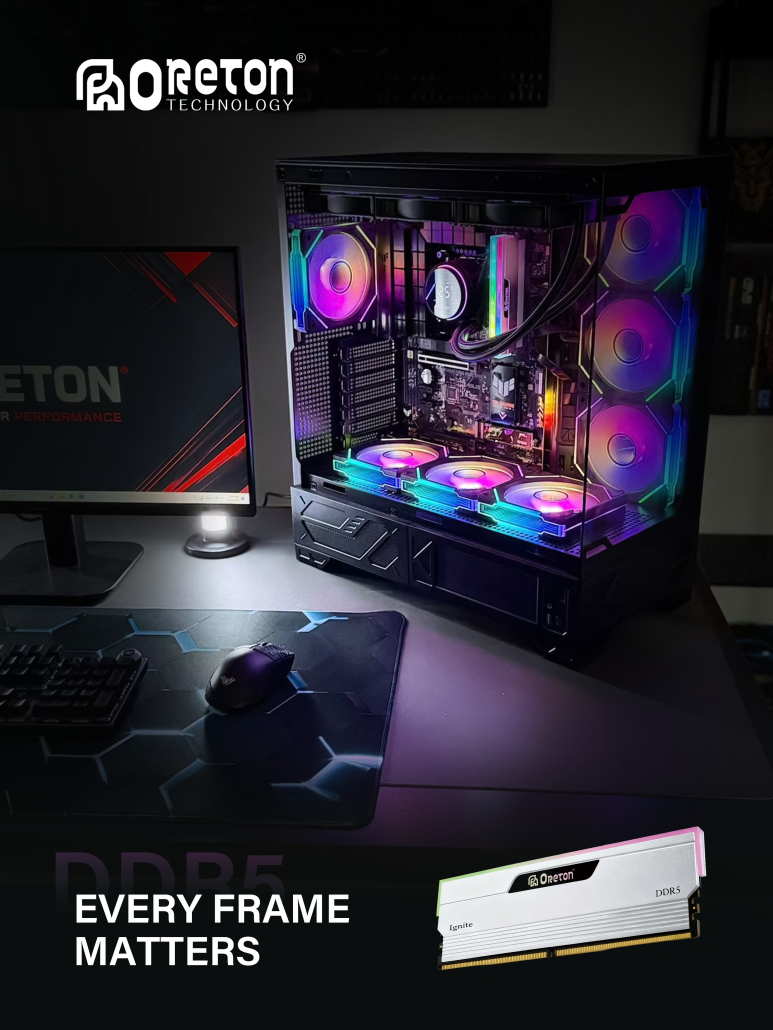
RAM-related bottlenecks generally fall into two categories: insufficient capacity and limited memory performance.
Insufficient RAM Capacity
When available physical memory becomes insufficient, the operating system may move less-active memory pages to a storage-backed paging file or swap space. Accessing this data can be substantially slower than accessing physical RAM.
Possible symptoms include:
- Noticeable delays when switching between applications.
- Stuttering during games or other memory-intensive tasks.
- Frequent paging activity while physical memory is heavily occupied.
- Slower performance when handling large datasets, creative projects or multiple virtual machines.
High RAM utilization alone does not prove that memory capacity is insufficient. Operating systems also use available memory for caching, and some cached data can be reclaimed when applications need more space.
A stronger indication of a capacity bottleneck is the combination of sustained memory pressure, paging activity and measurable performance degradation.
Limited Memory Bandwidth or Latency
Even when RAM capacity is sufficient, memory performance can affect workloads that frequently access system memory.
Bandwidth determines how much data can be transferred over a period of time, while latency describes how long a memory access takes under specified conditions. Their impact varies with the processor, memory configuration and application.
Some integrated graphics systems share system memory with the GPU, making memory bandwidth particularly important. Certain games, simulations and data-processing tasks can also be sensitive to memory performance.
When diagnosing a RAM bottleneck, users should check physical memory usage, paging behavior, memory channel configuration and supported operating parameters. Upgrading capacity is most useful when capacity is the limiting factor; faster memory is more relevant when the workload is sensitive to bandwidth or latency.
5. SSD Bottlenecks: When Storage Slows Down Workflows
Solid-state drives provide persistent storage for the operating system, applications and user data. Compared with traditional hard drives, SSDs can substantially reduce access delays and improve responsiveness in many common workloads.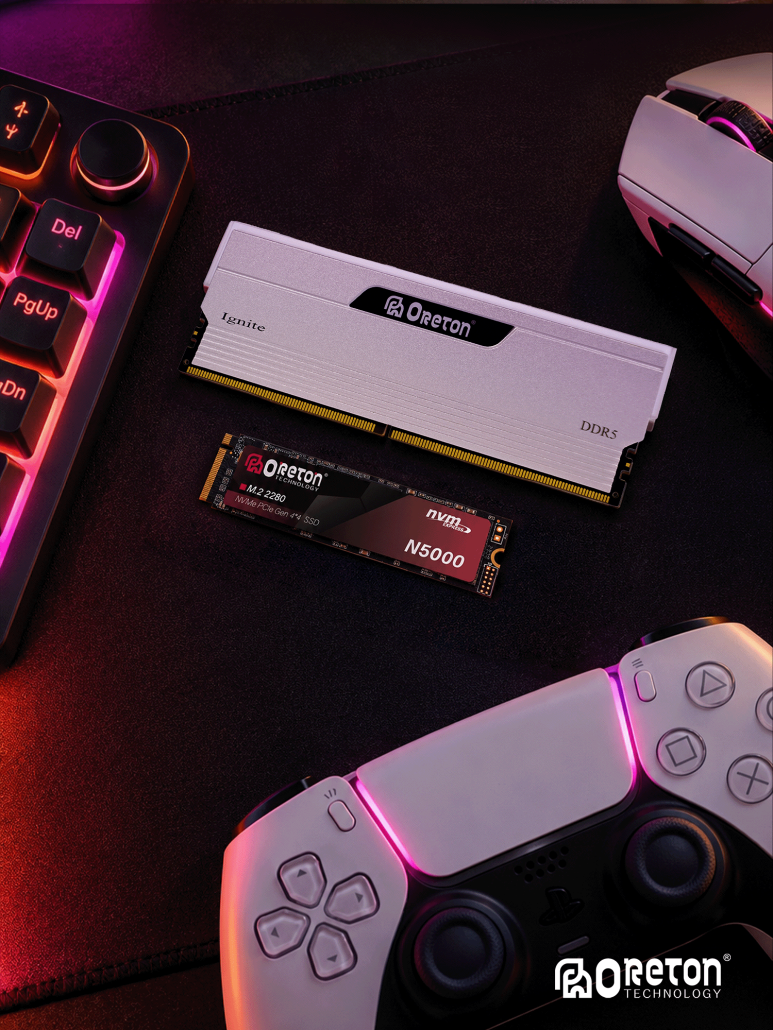
However, not every slow PC is limited by storage, and not every SSD upgrade produces the same improvement.
Storage-related limitations may become visible during:
- Operating system startup and application loading.
- Large file transfers and project imports.
- Game loading and asset streaming.
- Operations involving many small files.
- Workflows that repeatedly read and write large datasets.
- Tasks that trigger frequent paging because RAM capacity is insufficient.
Sequential read and write speeds describe performance when transferring data in relatively large, contiguous blocks. Random access performance, latency and queue behavior are often more relevant when the system handles many small requests.
Sustained write performance also matters. Some SSDs achieve high short-duration write speeds through caching, but their speeds may change during long transfers after the cache becomes exhausted.
A storage bottleneck should be diagnosed by examining the actual workload, drive activity, response times and transfer patterns. A drive reaching high utilization while requests are delayed may indicate a storage limitation, but high utilization alone does not establish the cause.
It is also important to distinguish a slow SSD from excessive paging caused by insufficient RAM. In the latter case, adding memory may improve responsiveness more effectively than replacing the SSD.
6. How to Identify the Limiting Component
The most effective approach is to observe the system while reproducing the task that feels slow. General benchmark scores are useful for comparisons, but they may not reveal the source of a limitation in a specific application.
A practical diagnostic process can be divided into five steps.
Step 1: Define the Performance Problem
Start by identifying what is actually slow.
Examples include low gaming frame rates, inconsistent frame times, slow application startup, long rendering times, delayed multitasking or slow file transfers.
Different symptoms point toward different components. A PC that takes a long time to load a large project may have a storage-related issue, while a system that renders a complex scene slowly may be limited by the CPU or GPU, depending on the software and rendering method.
Step 2: Monitor Hardware Behavior
Use system monitoring tools to observe CPU, GPU, RAM and storage activity while the workload is running.
| Componente | What to Monitor | Potential Warning Signs |
|---|---|---|
| CPU | Per-core utilization, effective clock speeds, temperature and power limits | One or more heavily loaded threads, reduced clocks or prolonged processing time |
| GPU | Utilization, clock speed, temperature, power limits and frame times | Sustained high utilization with limited rendering headroom |
| RAM | Physical memory usage, available memory and paging activity | Persistent memory pressure combined with paging and slowdowns |
| SSD | Active time, response time, transfer rate and workload pattern | Delayed storage requests or prolonged transfers under heavy activity |
No single metric is conclusive. The most useful evidence comes from comparing several measurements with the observed performance problem.
Step 3: Change One Workload Variable at a Time
Controlled testing helps reveal which component is limiting performance.
For example, lowering game resolution while keeping other settings similar can reduce GPU workload. If frame rates improve significantly, the GPU is likely an important limiting factor in that scenario.
Reducing background applications can help determine whether memory pressure is contributing to slowdowns. Testing a large file transfer separately from ordinary application use can help isolate storage performance.
Change only one major variable at a time where possible. Otherwise, it becomes difficult to identify which change produced the result.
Step 4: Check for Non-Hardware Causes
Performance problems do not always require a hardware upgrade. Before purchasing components, check for:
- Thermal throttling or inadequate cooling.
- Power limits or unsuitable power settings.
- Outdated drivers or firmware.
- Background applications and unnecessary processes.
- Software configuration issues.
- Malware or other unexpected system activity.
- Incorrect memory settings or unstable overclocking.
Resolving these issues may improve performance without replacing hardware.
Step 5: Verify the Result
After making a configuration change or upgrade, repeat the same workload under comparable conditions.
Compare relevant measurements such as average frame rate, frame-time consistency, rendering duration, application loading time or sustained file-transfer speed.
This approach helps determine whether the upgrade addressed the actual limitation rather than simply increasing a benchmark score.
7. PC Upgrade Priorities by Workload
The best upgrade depends on the intended use of the system.
| Workload | Potential Limiting Components | Upgrade Considerations |
|---|---|---|
| Gaming at high resolution | GPU, sometimes CPU | Check GPU utilization, frame times and graphics settings |
| Competitive gaming at high frame rates | CPU, GPU and memory configuration | Evaluate per-core CPU performance, frame-time consistency and GPU headroom |
| Edición de vídeo | CPU, GPU, RAM and SSD | Identify whether the slowdown occurs during effects processing, rendering, project loading or data transfer |
| 3D rendering | CPU or GPU, depending on the renderer | Confirm which processor the application uses and where rendering time is spent |
| Large datasets and virtual machines | RAM, CPU and storage | Check memory pressure, paging and processing workload |
| Transferencias de archivos de gran tamaño | SSD, interface, source drive or destination drive | Check the entire transfer path and sustained write behavior |
| Everyday office use | RAM, storage or CPU, depending on the problem | Investigate multitasking responsiveness, application loading and background activity |
These are starting points rather than fixed rules. A video editing system, for example, may be limited by GPU effects processing in one project and by RAM capacity in another.
8. Why Balanced Hardware Matters More Than Specifications Alone
A PC’s performance depends on the interaction between its components, not just the specifications of individual parts.
A high-end GPU paired with an unsuitable CPU may fail to deliver its full potential in certain workloads. A fast CPU with insufficient RAM may experience slowdowns when handling large projects. Likewise, a high-performance SSD cannot compensate for every application bottleneck.
A balanced configuration should consider:
- Workload requirements: Gaming, content creation, office tasks and data processing stress different components.
- Capacidad: RAM and storage must provide sufficient space for active applications and data.
- Performance characteristics: CPU processing capability, GPU throughput, memory bandwidth and storage latency serve different purposes.
- Compatibility: The motherboard, CPU, RAM and storage interfaces must support the intended configuration.
- Thermal and power conditions: Cooling and power delivery can affect sustained operating performance.
- Upgrade cost: The best investment is the one that removes the most important limitation for the target workload.
This is why component selection should begin with performance requirements rather than a simple ranking of specifications.
Conclusión
Identifying a PC upgrade bottleneck requires more than checking hardware specifications or running a single benchmark. CPU, GPU, RAM and SSD limitations produce different performance patterns, and the same system may be limited by different components under different workloads.
By defining the performance problem, monitoring hardware behavior, testing one variable at a time and ruling out configuration issues, users can make better-informed upgrade decisions.
The most effective upgrade is not necessarily the component with the highest specifications. It is the one that addresses the actual performance limitation and delivers a meaningful improvement in the tasks the system is designed to perform.