




1. Introduction
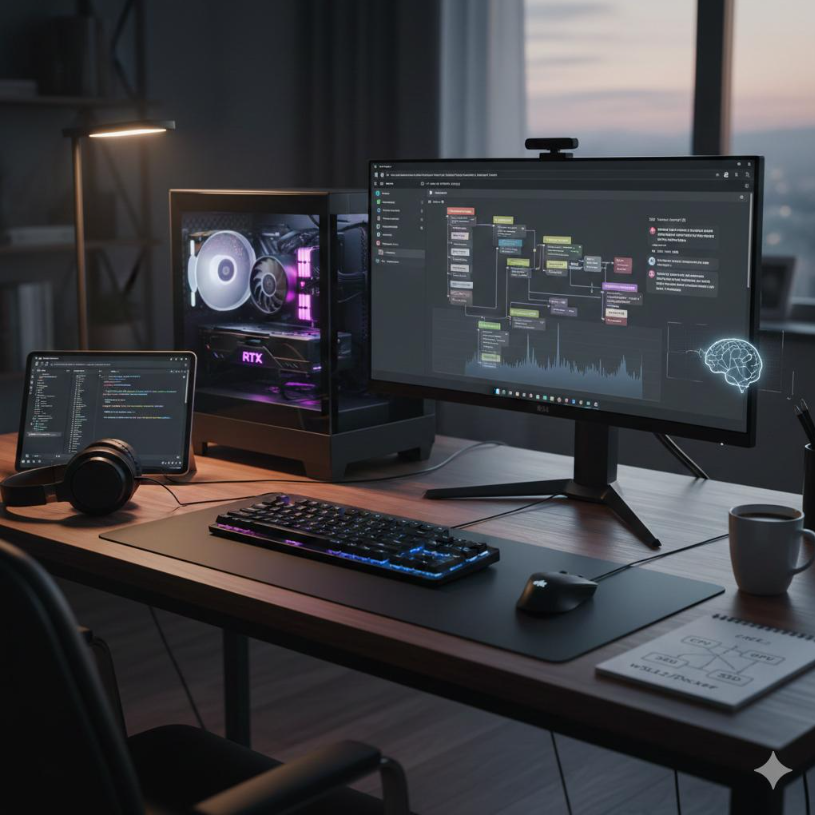 Modern PCs rely on more than physical hardware to operate correctly. A CPU, motherboard, memory module, SSD, and graphics card must work together through a combination of hardware interfaces, configuration data, firmware, and operating system software.
BIOS and other firmware components play a critical role in this process. They initialize hardware, configure system resources, identify installed devices, and prepare the platform to load an operating system. Their implementation can influence whether a component is recognized, whether a system starts successfully, and whether supported hardware configurations operate reliably.
Two PCs with similar hardware may behave differently if they use different firmware versions or configuration settings. A memory module may require updated platform support, an SSD may depend on the system’s storage configuration, and a CPU may need a compatible motherboard firmware version before it can initialize correctly.
Understanding how BIOS and firmware work helps explain why hardware compatibility depends on both physical specifications and the software embedded within the platform.
2. BIOS and Firmware: Understanding the Difference
Firmware is software stored in non-volatile memory that controls or initializes hardware. Unlike ordinary applications, firmware operates close to the hardware and provides functions that allow devices or systems to start and operate.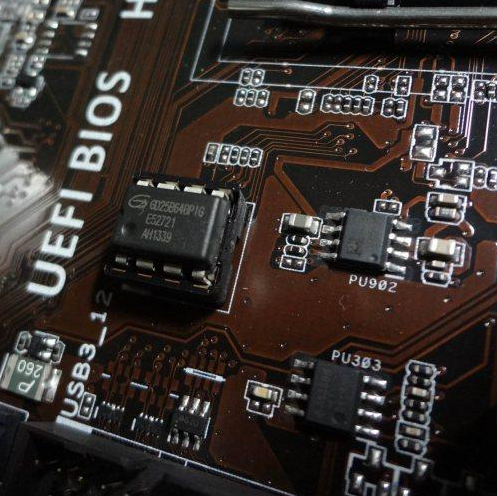
BIOS stands for Basic Input/Output System. On modern PCs, the term is often used informally to refer to the motherboard’s firmware setup environment.
Historically, traditional BIOS firmware was responsible for initializing hardware and starting the operating system. Most modern PCs use UEFI (Unified Extensible Firmware Interface), which provides a more flexible firmware environment and supports modern boot mechanisms, including GPT-based boot configurations and Secure Boot.
The terms BIOS and UEFI are frequently used interchangeably in everyday PC discussions, although they refer to different firmware approaches.
Firmware also exists outside the motherboard. Examples include firmware inside SSD controllers, graphics cards, network adapters, and other peripherals. Each implementation controls functions specific to its device.
The distinction matters because compatibility issues can originate from different layers. A motherboard firmware update may improve platform-level hardware support, while an SSD firmware update may address device-specific behavior.
3. The Role of Firmware During System Startup
When a PC is powered on, the processor begins executing instructions from a predefined reset location associated with the platform’s firmware environment.
The motherboard firmware then performs a series of initialization tasks before transferring control to the operating system’s boot process.
Although the exact sequence varies by platform, startup generally involves several stages:
- Platform initialization: The firmware configures essential processor, chipset, and motherboard functions.
- Memory initialization: The system detects installed memory and establishes working memory parameters.
- Device discovery: The firmware identifies and configures supported hardware, including storage devices and expansion components.
- Hardware checks: The platform performs initialization checks and reports certain errors when hardware cannot be configured successfully.
- Boot device selection: The firmware identifies an available boot target according to the configured boot order and boot options.
- Operating system loading: The firmware transfers control to the selected bootloader, which begins loading the operating system.
A problem at any of these stages can prevent the PC from starting normally.
For example, an incompatible CPU may fail to initialize, unstable memory settings may prevent successful POST, or an incorrect boot configuration may cause the system to report that no bootable device is available.
These symptoms can appear similar to hardware failure, even when the underlying cause is a firmware or configuration issue.
4. Hardware Recognition and Initialization
A PC contains many components that must be identified and configured before they can be used.
Motherboard firmware initializes the platform and discovers devices through supported interfaces. It may configure PCIe resources, establish storage access paths, and provide information that later software uses to identify hardware.
However, hardware recognition does not guarantee that every function will operate correctly.
For example, a system may detect an NVMe SSD but still fail to boot from it because the boot configuration is incorrect, the required bootloader is missing, or the operating system does not have the necessary support.
Similarly, a graphics card may be electrically compatible with a PCIe slot but still encounter problems related to firmware support, platform configuration, or device-specific software.
Compatibility should therefore be considered at multiple levels:
- Physical compatibility: The component fits and can be connected correctly.
- Electrical and interface compatibility: The component uses an interface supported by the platform.
- Firmware compatibility: The platform can initialize and configure the component.
- Operating system compatibility: The required drivers and software support are available.
- Functional compatibility: The component performs its intended tasks correctly under real workloads.
A successful hardware detection step is only one part of the overall compatibility process.
5. Memory Training and BIOS Configuration
Memory initialization is one of the most important firmware tasks in a modern PC.
Before the operating system can use system memory, the platform must configure the memory controller and establish suitable operating parameters for the installed DIMMs.
Depending on the platform, memory initialization and training can involve determining appropriate signal timing, calibration values, and other electrical parameters needed for reliable communication between the memory controller and DRAM.
The process depends on several factors, including:
- CPU memory controller capabilities
- DDR generation and supported data rates
- Memory module organization and Rank configuration
- Number of installed DIMMs
- Motherboard signal routing and electrical characteristics
- Firmware implementation and configuration settings
This explains why a memory kit that works with one CPU and motherboard combination may not behave identically on another platform.
Higher memory data rates and more demanding DIMM configurations can increase the difficulty of establishing stable operation. A system may require additional training time, use different trained parameters, or fall back to a lower operating speed when the selected configuration cannot initialize successfully.
Memory training is not simply a one-time performance optimization. It is part of the process that allows the platform to establish reliable communication with installed memory.
6. XMP, EXPO, and Memory Profiles
Many DDR4 and DDR5 memory modules support performance profiles such as Intel XMP or AMD EXPO, depending on the product and platform.
These profiles provide predefined memory settings, which may include data rate, timings, and voltage parameters. Compatible firmware can read the available profile information and apply the selected configuration.
However, a profile is not an unconditional guarantee that every system will operate at the advertised settings.
Actual support depends on the CPU memory controller, motherboard design, firmware version, DIMM population, and the particular memory kit.
A system may boot successfully using standard memory settings but fail to initialize after a high-performance profile is enabled. This can occur when the selected configuration exceeds the stable operating capability of the combined platform.
When troubleshooting, returning to default or standard memory settings can help determine whether the issue is associated with the performance profile rather than the physical memory module itself.
It is also important to distinguish between a module’s advertised profile and the memory controller’s official supported specifications. A profile may represent an overclocked memory configuration rather than a guaranteed operating point for every CPU and motherboard combination.
7. CPU and Motherboard Firmware Compatibility
CPU compatibility depends on more than the socket.
A motherboard must have the appropriate electrical design, chipset support, power delivery, and firmware implementation to initialize a particular processor.
Some motherboard models require a minimum BIOS or UEFI version to support newer CPU models, even when those processors use the same physical socket.
If the installed firmware does not recognize or properly initialize the processor, the system may fail to complete POST. Depending on the motherboard, diagnostic LEDs, beep codes, or display messages may help identify the problem.
Firmware updates can add processor support, correct initialization issues, or improve compatibility with certain configurations. However, support depends on the exact motherboard model and the firmware release.
Before installing a CPU, it is therefore important to check the motherboard manufacturer’s CPU support list and the minimum required firmware version.
8. Storage Compatibility and Boot Configuration
Firmware also influences how a PC detects storage devices and starts an operating system from them.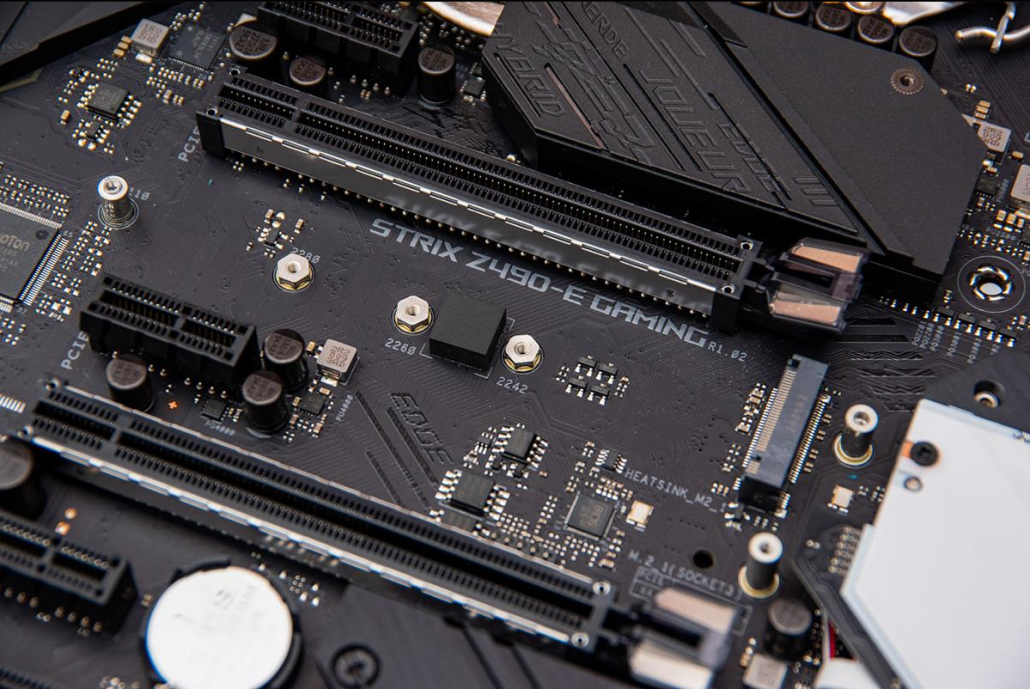
Modern systems commonly use NVMe SSDs connected through PCIe, as well as SATA storage devices. These interfaces follow different communication mechanisms, and their configuration depends on the motherboard and platform.
An NVMe SSD may be physically installed in an M.2 slot but remain unavailable for booting if the slot does not support the expected interface, the device is not initialized correctly, or the boot environment is configured improperly.
Boot configuration is another important factor. UEFI systems typically use boot entries that point to an operating system bootloader, often stored on an EFI System Partition. Changing boot mode, boot order, or related settings can prevent an otherwise functional installation from starting.
Secure Boot and storage configuration can also affect the startup process, depending on the operating system and installed software.
When a PC cannot boot from an SSD, troubleshooting should distinguish between device detection, bootloader availability, firmware configuration, and operating system problems rather than assuming that the SSD itself has failed.
9. Firmware Updates and Hardware Support
Firmware updates can improve compatibility, address bugs, refine hardware initialization, and add support for new components.
For motherboards, updates may include CPU microcode changes, memory compatibility improvements, updated initialization routines, security fixes, and adjustments to power or device behavior.
SSD and graphics card firmware updates address different layers of device operation and may fix controller-specific or device-specific issues.
However, newer firmware does not automatically improve every system. A release may target a particular processor generation, memory configuration, security issue, or hardware problem.
Before updating firmware, users should review the release notes and confirm that the update applies to their exact hardware model.
Important precautions include:
- Verify the exact motherboard or device model and hardware revision.
- Download firmware from the appropriate manufacturer’s support page.
- Read update instructions and relevant release notes.
- Avoid interrupting power during the update process.
- Record important firmware settings before updating.
- Confirm whether the update changes memory, storage, security, or boot defaults.
Some firmware updates reset configuration settings, change memory training behavior, or require a subsequent initialization cycle. These effects should be considered when evaluating a system after an update.
10. Firmware Settings and System Stability
Firmware settings determine how a platform configures many of its hardware functions.
Memory frequency and timings, CPU power behavior, boot mode, Secure Boot, virtualization support, and certain PCIe settings may all be controlled or exposed through the firmware setup interface.
An incorrect setting can create instability even when all installed components are individually compatible.
For example, an aggressive memory profile may cause repeated boot failures, while a changed boot mode may prevent an existing operating system installation from starting.
Changes to CPU power limits or voltage-related parameters can also affect temperatures, power consumption, and stability.
When a system becomes unstable after a configuration change, restoring default settings can help isolate the cause. However, resetting firmware settings may also change storage or security configurations, so the original setup should be recorded when necessary.
Stable operation depends on selecting settings that are supported by the complete platform, not simply enabling the most aggressive available options.
11. Common Firmware-Related Compatibility Problems
Several common PC problems can originate from firmware, configuration, or initialization issues.
System fails to POST after a memory upgrade
Possible causes include incomplete memory training, unsupported settings, improper DIMM installation, or a configuration that exceeds the platform’s stable operating capability.
PC does not recognize a newly installed CPU
The motherboard may require a newer firmware version, or the processor may not be supported by the specific board model.
SSD is detected but the operating system will not boot
The issue may involve boot order, UEFI configuration, a missing bootloader, or operating system startup files rather than the SSD’s physical condition.
System becomes unstable after enabling XMP or EXPO
The selected memory profile may not be stable on the current CPU, motherboard, and DIMM configuration.
A hardware device behaves differently after a firmware update
The update may have changed defaults, initialization behavior, compatibility rules, or device-specific operation. Reviewing the release notes and comparing settings can help identify the difference.
In all these cases, the most effective troubleshooting approach is to isolate one variable at a time and verify the relevant hardware and firmware support information.
12. A Structured Approach to Firmware Troubleshooting
Firmware-related problems are easier to diagnose when the troubleshooting process follows a consistent order.
First, verify the physical installation. Check that the CPU, DIMMs, SSD, graphics card, and power connectors are installed correctly.
Second, confirm the exact hardware models and supported configurations. Check CPU support lists, memory specifications, motherboard documentation, and interface requirements.
Third, restore a known-good configuration when safe to do so. Standard memory settings and default firmware values can help determine whether a problem results from custom settings.
Fourth, identify the stage at which the failure occurs. A system that cannot complete POST requires a different diagnostic approach from one that starts normally but cannot load its operating system.
Finally, consider a firmware update only when there is a relevant compatibility reason, documented fix, or specific requirement. Follow the manufacturer’s instructions and avoid unnecessary firmware changes during troubleshooting.
This approach reduces the risk of introducing additional problems while helping distinguish hardware faults from configuration issues.
Schlussfolgerung
BIOS and firmware are essential parts of modern PC hardware compatibility. They initialize components, configure system resources, manage memory training, identify devices, and prepare the system to load an operating system.
A component’s physical interface and advertised specifications do not tell the whole story. Reliable operation also depends on processor support, motherboard implementation, firmware version, configuration settings, and operating system support.
Understanding these relationships makes it easier to select compatible hardware, diagnose startup problems, configure memory correctly, and evaluate firmware updates.
PC compatibility is not determined by hardware specifications alone. It depends on how hardware, firmware, configuration, and software work together as a complete system.