




Choosing the right SSD capacity is only part of planning storage for a PC build. How that capacity is allocated can also affect system management, upgrades, backups, and everyday usability.
A 1TB SSD, for example, can be used as one large system drive, divided into multiple partitions, or combined with a second SSD for separate system and data storage.
There is no single partition layout that works for every PC. The right approach depends on the SSD capacity, operating system, applications, games, and the way the computer will be used.
SSD Partition vs Physical SSD: An Important Difference
Before discussing partition sizes, it is important to understand that a partition is not a physical section of the SSD.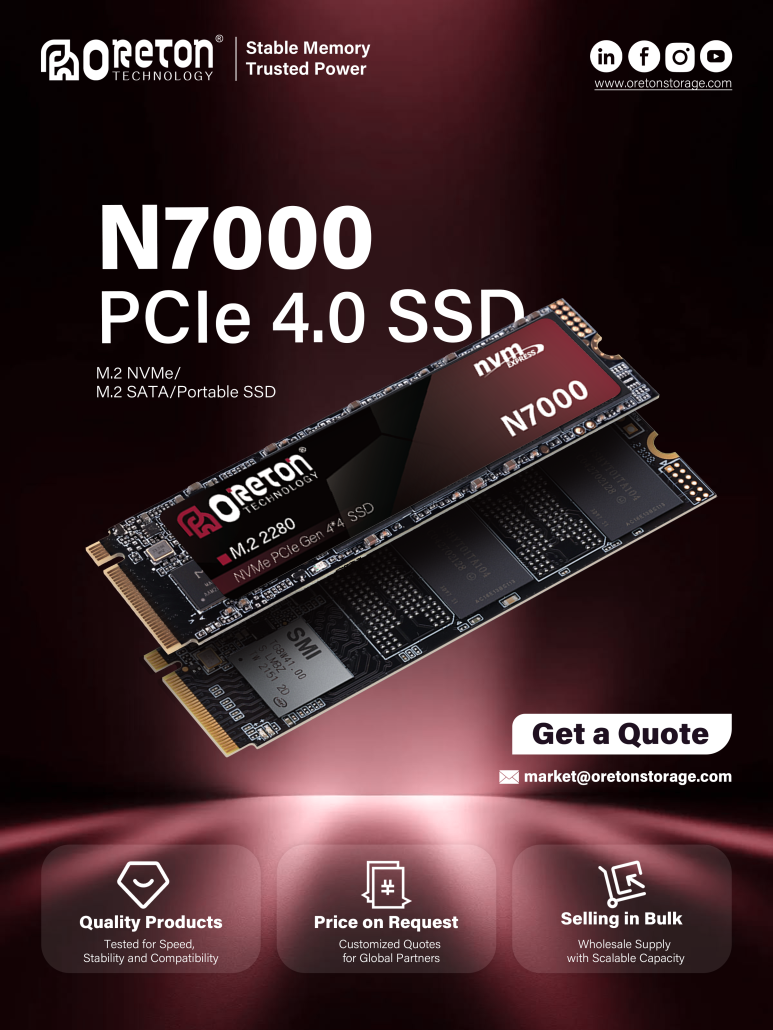
A single physical SSD can contain multiple logical drives:
1TB Physical SSD
│
├── C: 250GB
│   └── Windows + Applications
│
└── D: ~680GB
    └── Games + Personal Files
Both C: and D: are still using the same physical NAND Flash, controller, and SSD interface.
Creating two partitions does niet turn one SSD into two independent storage devices.
This also means that partitioning an SSD does not automatically increase its read/write performance.
The main benefits are organization, management, and data separation.
Why Partition an SSD?
Partitioning can be useful for several reasons.
1. Separating Windows from Personal Data
Keeping Windows and personal files in separate partitions can make system management easier.
Bijvoorbeeld:
C: Drive
- Windows
- Drivers
- Applications
- System files
D: Drive
- Documents
- Photos
- Videos
- Projects
- Games
If Windows needs to be reinstalled, personal data stored separately can be easier to manage.
However, a partition should niet be considered a backup.
If the physical SSD fails, multiple partitions on that SSD can be affected simultaneously.
2. Easier Storage Management
A separate data partition can make it easier to see where storage is being consumed.
Bijvoorbeeld:
C: System
250GB

D: Data
750GB
Instead of having applications, downloads, games, and personal files competing for the same system drive space, users can organize them according to their needs.
3. Preventing the System Drive from Becoming Too Full
Windows requires free space for various system operations.
Storage can be consumed by:
- Windows updates
- Temporary files
- Page file
- Hibernation
- System restore points
- Application data
- Browser caches
- Software installations
If the system partition becomes nearly full, managing the PC becomes increasingly difficult.
Therefore, allocating enough space to the C: drive is important.
How Large Should the C: Drive Be?
There is no universal requirement because Windows installations vary depending on the applications and features installed.
For a typical modern PC, the following is a practical starting point:
| SSD-capaciteit | Suggested C: Drive |
|---|---|
| 512 GB | 150–200GB |
| 1TB | 200–300GB |
| 2TB | 300–500GB |
| 4TB | 400–600GB |
These are planning recommendations, not mandatory Windows requirements.
A user who installs many large applications may need more space.
A gaming PC with most games installed on another drive can use a smaller system partition.
The key principle is:
Don’t make the C: drive so small that it constantly approaches full capacity.
512GB SSD Partition Recommendation
A 512GB SSD is suitable for mainstream PCs, office systems, and entry-level gaming configurations.
A simple layout could be:
C: 180GB
Windows + Applications

D: Remaining Space
Games + Documents + Media
For a basic productivity PC, even a single partition may be preferable.
With only 512GB of total physical capacity, creating too many partitions can make storage management less flexible.
For this capacity, one large partition or two partitions is usually sufficient.
1TB SSD Partition Recommendation
A 1TB SSD provides considerably more flexibility.
A practical configuration could be:
C: 250GB
Windows + Applications

D: Remaining Space
Games + Personal Files
For a gaming PC, this arrangement allows the system and applications to remain separated from the game library.
However, there is no performance requirement to put games on a separate partition.
If simplicity is the priority, using the entire SSD as one C: drive is perfectly reasonable.
2TB SSD Partition Recommendation
For a 2TB SSD, users have enough capacity to create a dedicated system partition without significantly restricting the remaining storage.
Bijvoorbeeld:
C: 300–400GB
Windows + Applications

D: Remaining Space
Games + Projects + Media
This can work particularly well for:
- Gaming PCs
- Content creation systems
- Werkstations
- Developer PCs
Large applications, project files, and game installations can consume hundreds of gigabytes, so a 2TB SSD also provides more flexibility for future expansion.
4TB SSD Partition Recommendation
A 4TB SSD is more commonly used in high-capacity gaming PCs, workstations, content-creation systems, and storage-heavy configurations.
A possible layout could be:
C: 400–500GB
Windows + Applications

D: ~2.5TB
Games + Projects

E: Remaining Space
Media + Archive
However, three partitions are not necessary for every user.
If the system does not require strict data separation, using two partitions—or even one large partition—can be easier to manage.
Should Games Have Their Own Partition?
This is one of the most common questions when building a gaming PC.
The answer is:
Not necessarily.
If you have one physical SSD:
C: Windows + Gameswill generally work just as well from a hardware perspective as:
C: Windows
D: Games
Both partitions are still using the same SSD controller, NAND Flash, and PCIe interface.
Creating a separate game partition does not create additional SSD bandwidth.
The situation is different when using two physical SSDs.
Bijvoorbeeld:
SSD 1
Windows + Applications

SSD 2
Games + Large Files
Now the storage devices are physically separate, which can provide more flexibility for storage management and workload distribution.
How Much Free Space Should an SSD Have?
One of the most important storage management practices is avoiding an SSD that remains nearly full.
As an SSD becomes heavily occupied, the controller has fewer free NAND resources available for internal management.
Operations such as:
- Garbage Collection
- Wear Leveling
- SLC Cache Management
- Data Relocation
can become more difficult under certain workloads.
For general PC usage, maintaining approximately 10-20% vrije ruimte is a reasonable practical guideline.
This does not mean an SSD will suddenly become unreliable when it reaches 80% capacity.
Instead, keeping additional free space provides the controller with more flexibility, particularly during sustained or write-intensive workloads.
Free Space Is Not the Same as Over-Provisioning
These two concepts are related but should not be treated as identical.
User Free Space
This is storage capacity that the operating system sees as available.
Bijvoorbeeld:
1TB SSD
800GB Used
200GB Free
The user has approximately 20% free space.
Over-Provisioning
Over-Provisioning refers to additional physical NAND capacity reserved for internal SSD management.
It can support functions such as:
- Garbage Collection
- Wear Leveling
- Bad Block Management
- Internal data movement
Therefore:
Keeping 20% free space does not simply mean the SSD has gained 20% additional factory-level Over-Provisioning.
The actual SSD architecture and firmware determine how NAND capacity is managed.
Does Partitioning Improve SSD Performance?
Generally:
No.
Creating additional partitions does not increase the SSD’s:
- Sequential read speed
- Sequential write speed
- IOPS
- PCIe bandwidth
- NAND performance
For example, a PCIe 4.0 NVMe SSD rated at around 7,000 MB/s does not become faster simply because it is divided into two partitions.
Performance depends much more on:
- SSD controller
- NAND-flash
- Firmware
- PCIe interface
- Queue depth
- Werkbelasting
- Thermal conditions
- Available free space
Partitioning is primarily a storage organization strategy, not a performance upgrade.
Should You Use One SSD or Two?
The answer depends on the PC build.
One SSD
A single large SSD is simple and cost-effective.
Bijvoorbeeld:
2TB NVMe SSD
C: 300GB
D: Remaining Capacity
This works well for many gaming and productivity PCs.
Two SSDs
Two physical SSDs can provide more flexibility:
SSD 1
Windows + Applications

SSD 2
Games + Projects + Media
This can be useful for:
- Werkstations
- Content creation
- Large game libraries
- Multiple operating systems
- Heavy storage workloads
The key distinction is that two physical SSDs provide two storage devices, while two partitions provide two logical volumes on the same device.
Don’t Use Partitions as Your Backup Strategy
Partitioning can help organize files, but it does not protect against physical SSD failure.
If a 2TB SSD contains:
C: Windows
D: Photos
E: Projects
and the SSD fails, all three partitions may become inaccessible.
Important files should therefore be backed up to:
- Another physical drive
- Externe opslag
- NAS
- Cloud storage
- Other independent backup media
A separate partition is useful for organization.
It is not a replacement for backup.
Choosing SSD Capacity for a PC Build
Partition planning should start with the total storage requirement, not with the C: drive size. 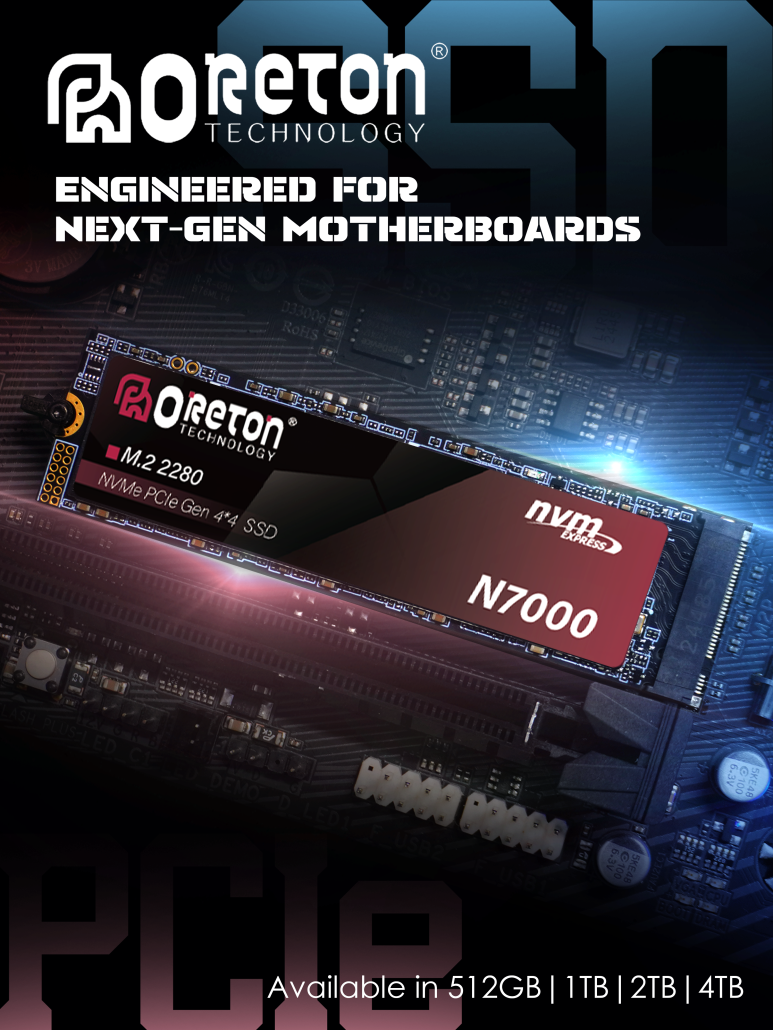
A simple guideline:
512 GB
Suitable for:
- Office PCs
- Basic productivity
- Entry-level gaming
- Secondary systems
1TB
A strong starting point for:
- Mainstream gaming PCs
- General-purpose desktops
- Productivity systems
2TB
Better suited to:
- Gaming PCs with large libraries
- Content creation
- Werkstations
- Development environments
4TB+
Useful for:
- Large game libraries
- Video production
- Professionele werkstations
- Large media collections
- Storage-intensive applications
As modern games, applications, and media files continue to grow, choosing additional capacity at the time of the build can be more practical than constantly managing a nearly full SSD.
SSD Capacity Is Not Exactly the Same as Usable Capacity
Another common source of confusion is the difference between advertised capacity and the capacity shown in Windows.
An SSD marketed as:
1TB
does not normally appear as exactly 1,000GB of usable space.
Storage manufacturers generally use decimal units:
1TB = 1,000,000,000,000 bytes
Operating systems may display storage using different unit conventions.
In addition, some capacity is used for:
- File system structures
- Firmware
- Metadata
- Slecht blokbeheer
- Internal SSD functions
Therefore, the usable capacity shown by the operating system will be lower than the advertised number.
A Practical SSD Partition Strategy
For most PC builds, there is no need to overcomplicate storage.
A practical approach is:
512GB SSD
→ One partition or approximately 150–200GB system partition
1TB SSD
→ Approximately 200–300GB system partition + remaining storage
2TB SSD
→ Approximately 300–500GB system partition + remaining storage
4TB SSD
→ 400–600GB system partition + one or two data partitions if needed
The most important factors are:
Enough system space + sufficient overall capacity + reasonable free space.
Oreton SSDs for Different PC Builds
SSD capacity and interface should be selected according to the complete PC configuration.
Oreton offers NVMe SSD solutions designed for different performance and capacity requirements.
De N3000 PCIe 3.0 NVMe SSD is positioned for mainstream systems and workloads where practical storage performance and cost efficiency are important.
De N7000 PCIe 4.0 NVMe SSD targets higher-performance PC builds, including gaming systems and demanding desktop workloads.
For newer high-performance platforms, PCIe 5.0 storage solutions can provide significantly greater bandwidth for workloads that can take advantage of it.
Regardless of the PCIe generation, effective SSD design depends on more than interface speed.
NAND Flash + Controller + Firmware + Thermal Management + Capacity
all contribute to the overall storage experience.
Conclusie
A well-planned SSD configuration is about more than simply choosing the largest capacity available.
For most PC builds, the key considerations are:
- Choose enough total capacity for your workload
- Give Windows enough room to grow
- Avoid keeping the SSD nearly full
- Use partitions primarily for organization
- Don’t expect partitioning to increase SSD performance
- Use separate physical storage for important backups
For a modern gaming or productivity PC, 1TB is a practical starting point, while 2TB provides considerably more flexibility for long-term use.
And when planning a new build, it is worth considering not only how much storage you need today, but also how much space your applications, games, projects, and media library may require in the future.