




Upgrading a laptop is one of the most cost-effective ways to improve performance and extend the life of an existing device. But many users face the same question before spending money:
👉 Should you upgrade the RAM first, or replace the storage drive with an SSD?
The answer depends entirely on what is slowing the laptop down. RAM and SSDs improve performance in different ways, and upgrading the wrong one may deliver far less improvement than expected.
This guide explains how each upgrade works, when it matters most, and how to decide which should come first for your laptop.
1. RAM and SSD Solve Different Problems
Before choosing, it helps to understand what each component actually does.
RAM (Memory)
RAM stores data that your laptop is actively using right now. It affects:
- multitasking
- switching between applications
- browser tabs
- background tasks
- responsiveness under load
SSD (Storage)
The SSD stores your operating system, apps, and files. It affects:
- boot speed
- app launch times
- file loading
- system updates
- overall responsiveness when accessing data
Une façon simple de voir les choses :
- RAM helps your laptop handle more tasks smoothly
- SSD helps your laptop do tasks faster
2. When an SSD Upgrade Should Come First

If your laptop still uses a traditional hard drive (HDD), replacing it with an SSD is often the single biggest upgrade you can make.
Hard drives rely on spinning disks and mechanical movement, which are much slower than flash storage.
Signs an SSD upgrade should come first:
- slow startup times
- long waits when opening apps
- system freezes during updates
- slow file transfers
- noisy hard drive activity
- laptop feels sluggish even with light use
What changes after upgrading to SSD:
- faster boot times
- quicker app launches
- smoother updates
- reduced loading delays
- quieter and cooler operation (in many cases)
For older laptops with HDDs, the difference can feel dramatic.
3. When a RAM Upgrade Should Come First
If your laptop already has an SSD but still feels slow during multitasking, RAM may be the real bottleneck.
When memory is full, the system starts using storage as temporary memory (swap/page file), which is much slower than RAM.
Signs a RAM upgrade should come first:
- slowdown with many browser tabs open
- lag while using video calls + browser + office apps together
- apps reload when switching between them
- frequent stuttering during multitasking
- memory usage constantly near maximum
What changes after upgrading RAM:
- smoother multitasking
- fewer slowdowns under load
- better responsiveness with many apps open
- improved experience in creative software or heavier tasks
If your workload involves many simultaneous tasks, RAM can make a bigger difference than storage speed.
4. What If Your Laptop Already Has Both?
If your laptop already has:
- enough RAM for your workload
- an SSD instead of HDD
…then upgrades may provide smaller returns.
At that point, performance may be limited by:
- CPU capability
- l'étranglement thermique
- battery power mode
- background software
- age of the platform itself
Not every slow laptop is caused by RAM or storage.
5. Real-World Scenarios
Student / Office Use
Typical tasks:
- documents
- browsing
- video calls
- streaming
Best priority:
- HDD laptop → SSD first
- SSD laptop with 4GB/8GB RAM struggling → RAM upgrade
Casual Gaming
Best priority depends on current specs:
- HDD causes long loading times → SSD
- low RAM causes stutter → RAM
Content Creation / Heavy Multitasking
Tasks:
- editing
- design apps
- many browser tabs
- external displays
Often benefits from:
- more RAM first (if low)
- SSD second for workflow speed
Very Old Laptop
If both RAM and storage are outdated, upgrading both may be the best path—if the platform is still worth keeping.
6. How to Check Before Spending Money
Before buying upgrades, check:
Type de stockage
Is the laptop using:
- DISQUE DUR
- SATA SSD
- SSD NVMe
RAM Capacity
How much memory is installed:
- 4GB
- 8GB
- 16GB+
Upgrade Support
Can the laptop upgrade RAM or storage?
Some laptops have:
- soldered RAM
- only one slot
- storage limitations
- thin designs with restricted access
Always verify compatibility first.
7. Quick Decision Guide
| Current Situation | Upgrade First |
|---|---|
| Laptop still uses HDD | SSD |
| SSD installed, multitasking is slow | RAM |
| 4GB RAM in modern usage | RAM |
| Long boot and loading times | SSD |
| Both outdated | Consider both |
8. Common Mistakes to Avoid
Buying More RAM Than You Need
For light users, extreme capacities may bring little benefit.
Ignoring Storage Type
Many users add RAM while still using an HDD, leaving the biggest bottleneck unchanged.
Forgetting Compatibility
Wrong RAM speed, unsupported capacity, or incompatible SSD form factor can waste money.
Expecting Miracles on Very Old Hardware
Some systems are limited by CPU age or thermal design.
9. Final Takeaway
There is no single answer for every laptop.
- If your laptop still uses an HDD, an SSD upgrade usually comes first.
- If your laptop already has an SSD but struggles under multitasking, RAM may be the smarter first upgrade.
The best upgrade is not the most expensive one—it is the one that solves the real bottleneck.
À propos d'Oreton
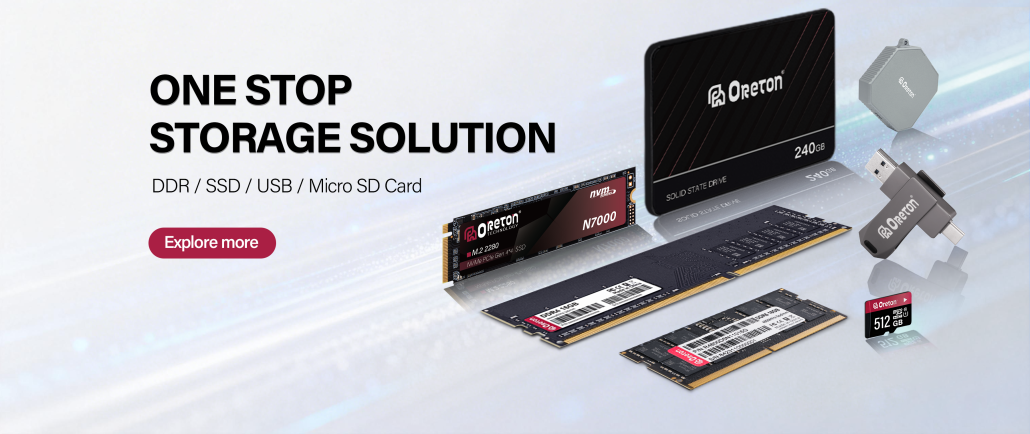
At Oreton, we provide both SSD and memory solutions designed for practical real-world upgrades.
Whether you need a cost-effective SSD to revive an older laptop or reliable RAM for smoother multitasking, our products are built with strict quality control and validated for stable daily performance.
Because the right upgrade should feel like a real improvement—not just a specification change.