



1. Introduction: Why SSD Health Matters
Solid-state drives (SSDs) have transformed modern computing, offering unmatched speed, durability, and power efficiency compared to traditional hard drives (HDDs). But even the best SSDs can face performance degradation, compatibility issues, or even unexpected data loss over time.
Whether you’re a power user, IT admin, or casual laptop owner, understanding the root causes of SSD problems and how to fix them can extend the life of your storage and protect your data.
In this guide, we’ll walk you through the most common SSD problems, troubleshooting steps, and best practices for long-term SSD performance and stability.
2. Top SSD Issues and How to Fix Them
Problem #1: SSD Performance Is Slowing Down
Symptoms:
-
Longer boot times
-
Sluggish file transfers
-
Apps taking longer to load
Why It Happens:
-
Low Available Space: SSDs need free blocks to efficiently manage new data. When nearly full, performance takes a hit.
-
TRIM Not Enabled: Without the TRIM command, SSDs can’t clean deleted data blocks, slowing down write speeds.
-
Firmware Is Outdated: Old firmware may lack optimizations or bug fixes.
Solutions:
-
Keep at least 10–20% free space at all times.
-
Use OS settings or commands to verify TRIM is enabled.
-
Update firmware via the manufacturer’s utility.
💡 Pro Tip: In Windows, check TRIM status by running
fsutil behavior query DisableDeleteNotifyin Command Prompt. A value of0means TRIM is enabled.
Problem #2: SSD Not Recognized by the System
Symptoms:
-
SSD not showing in BIOS or Disk Management
-
Operating system won’t boot
-
New drive appears “invisible” after installation
Why It Happens:
-
Loose or Incorrect Cabling: Especially common with SATA and M.2 drives.
-
BIOS/UEFI Settings Misconfigured: Some motherboards disable ports by default.
-
Lack of Proper Initialization: A new SSD may need to be initialized or formatted.
🛠️ Solutions:
-
Check all physical connections are secure.
-
Go into BIOS and enable storage interfaces (AHCI/NVMe/SATA).
-
Use Disk Management in Windows to initialize new drives.
⚙️ Still not working? Try testing the SSD on a different system or with a USB-to-SATA/M.2 adapter.
⚠️ Problem #3: Data Loss or File Corruption
Symptoms:
-
Missing files
-
Read/write errors
-
Unexpected formatting or drive resets
Why It Happens:
-
Power Outages: Incomplete data writes may corrupt files.
-
Bad Sectors: NAND flash degrades over time, causing unresponsive storage blocks.
-
Accidental Formatting or Deletion
🛠️ Solutions:
-
Use a UPS (Uninterruptible Power Supply) to prevent sudden shutdowns.
-
Perform regular backups to an external drive or cloud.
-
Try professional recovery tools like Recuva, EaseUS, or Disk Drill if loss has already occurred.
Keep an eye on SMART attributes using tools like CrystalDiskInfo to monitor drive health and detect early warning signs.
3. Preventive Maintenance Tips: Keep Your SSD Fast and Healthy
To get the most out of your SSD, follow these long-term care tips:
| Tip | Why It Matters |
|---|---|
| Leave Free Space | Ensures smooth garbage collection and caching |
| Enable TRIM | Maintains write performance and lifespan |
| Update Firmware | Fixes bugs, boosts stability |
| Avoid Frequent Full Writes | Reduces wear on NAND cells |
| Use UPS Power Protection | Prevents corruption during power loss |
| Perform Regular Backups | Shields you from unexpected loss |
4. Why SSD Quality Matters: All Drives Are Not Equal
The brand and build of your SSD have a direct impact on long-term performance.
🔍 What to Look for in a Quality SSD:
-
High-endurance NAND flash (like TLC or MLC instead of QLC)
-
Robust controller chips (Phison, Silicon Motion, etc.)
-
Thermal protection and sensors
-
Power loss protection capacitors
-
Support for firmware updates and diagnostic tools
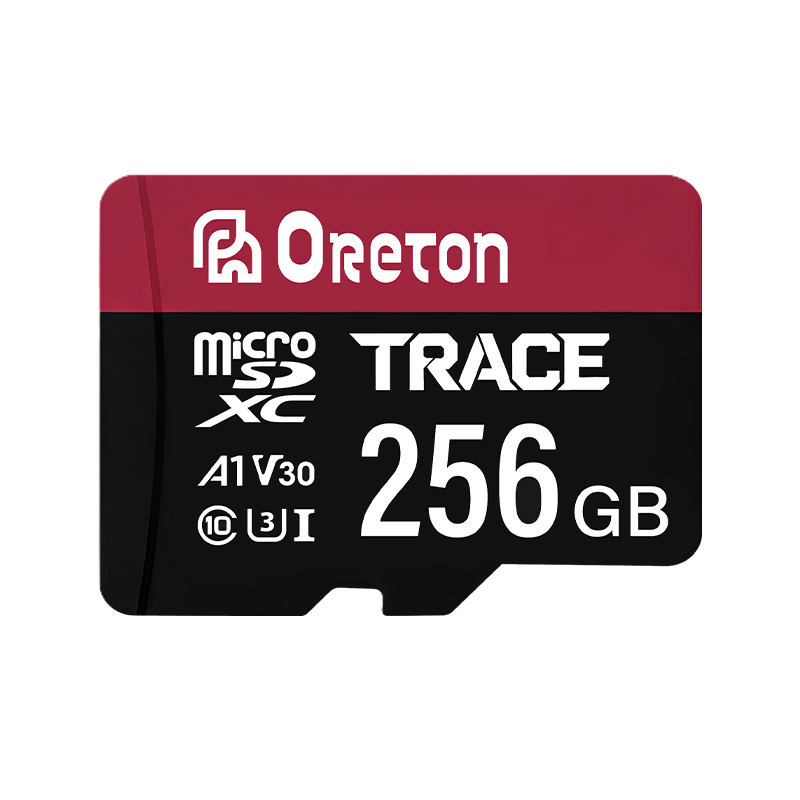
Oreton SSDs: Built for Stability and Speed
Oreton drives are engineered for professionals who demand performance and reliability:
-
High-speed controllers optimized for both read and write
-
Advanced thermal management for stable performance under load
-
Enterprise-level firmware and NAND selection
-
Plug-and-play support for Windows, macOS, Linux
-
Backed by rigorous QA and multi-stage testingSSD performance issues and data loss
5. Conclusion: Smart SSD Management = Long-Term Speed
SSDs are faster, quieter, and more efficient than traditional drives—but they still need care.
By understanding common issues like performance drops, recognition failures, and data loss, and implementing a few simple best practices, you can ensure your SSD delivers blazing-fast speeds with long-term stability.
For those seeking a trusted SSD brand, Oreton offers next-gen storage solutions designed for every use case—from daily workstations to enterprise deployments.
🔒 Reliable SSDs. Smart Power. Lasting Performance.
Choose Oreton.